
What Is BruinCast?
BruinCast is UCLA’s lecture capture and streaming service for recording eligible class lectures and making those recordings available to enrolled students through Bruin Learn (Canvas), with Panopto used for streaming, hosting, playback, and media management. Instructors teaching courses assigned to a BruinCast-enabled classroom can schedule BruinCast recordings directly through their Bruin Learn course site. Reach out to bruincast@ucla.edu to learn more.
Why Use BruinCast?
BruinCast is designed to support teaching and learning by giving students a reliable way to review class material after the lecture. It is not a replacement for attending class, participating in course activities, or taking notes.
What Classrooms Offer BruinCast?
BruinCast capabilities are available in 79 Classrooms across UCLA. 24 Classrooms support Video & Audio recordings and 55 Classrooms support Audio Only (“Podcast”) recordings.
Video & Audio Recording Classrooms
- Boelter 2760
- Broad 2160E
- Bunche 1209B
- Bunche 2209A
- Dodd 121
- Dodd 147
- Fowler A103B
- Franz 1178
- Haines 39
- Kaplan A26
- Kaplan A40
- Kaplan A48
- Kaplan A51
- Kaplan A65
- Kinsey Pavilion 1220B
- LaKretz 110
- Moore 100
- MS4000A
- Physics & Astronomy Building 1425
- Physics & Astronomy Building 1749
- Physics & Astronomy Building 2434
- WG Young CS 24
- WG Young CS 50
- WG Young CS 76
Audio Only (“Podcast”) Recording Classrooms
- Boelter 2444
- Boelter 3400
- Boelter 4413
- Boelter 5249
- Boelter 9436
- Broad 2100A
- Bunche 3178A
- DeNeve Auditorium
- Dodd 146
- Dodd 161
- Dodd 167
- Dodd 170
- Dodd 175
- Fowler A139
- Franz 1260
- Franz 2258A
- Geology 3656
- Geology 4660
- Haines 118
- Haines 220
- Haines A2
- Haines A18
- Haines A25
- Haines A44
- Humanities 169
- Kaplan 135
- Kinsey Pavilion 1220B
- Kinsey Pavilion 1240B
- LaKretz 100
- LaKretz 101
- Lakretz 120
- Math Sciences 5200
- Moore 1003
- North West Campus Auditorium
- Perloff 1102
- Physics & Astronomy 1434A
- Public Affairs 1222
- Public Affairs 1234
- Public Affairs 1246
- Public Affairs 1256
- Public Affairs 1264
- Public Affairs 1337
- Public Affairs 2214
- Public Affairs 2232
- Public Affairs 2238
- Public Affairs 2250
- Public Affairs 2270
- Public Affairs 2284
- Rolfe 1200
- Rolfe 3126
- Royce 190
- Royce 362
- WG Young 1044
- WG Young 2200
- WG Young 4216
Using the BruinCast Scheduler in Bruin Learn
You can learn more about this new feature here:How do I use the BruinCast Scheduler in Bruin Learn?
How to use the new BruinCast Scheduler to schedule lecture capture recordings
Instructors teaching courses assigned to a BruinCast-enabled classroom can schedule BruinCast recordings directly through their Bruin Learn course site. These controls are only available to users with the Teacher or administrator role in Bruin Learn.
Instructors assigned to BruinCast-enabled classrooms will see the BruinCast Scheduler tab appear in the navigation of their course. If you are assigned to a BruinCast-enabled classroom and do not see this tab available in your course navigation, please contact bruincast@ucla.edu
Using the BruinCast Scheduler for Audio and Video Equipped Classrooms:
If your classroom is equipped with both video and audio recording hardware, sessions can be immediately scheduled. To schedule a class to be recorded, follow the steps below:
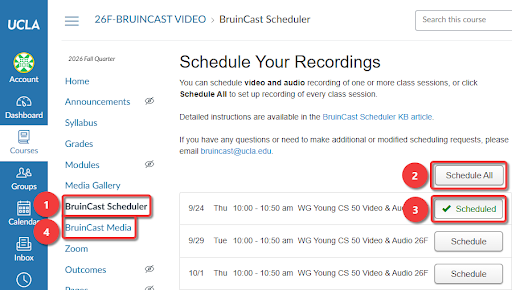
- Log in to Bruin Learn and navigate to the BruinCast Scheduler in the left-hand navigation menu of your course.
- Press Schedule All or the Schedule button to schedule which class sessions you wish to record.
- Verify that your selected buttons are marked with a green checkmark and indicate that they are Scheduled.
- If you wish to unschedule a session, simply click the same button again.
- When at least one session recording has been scheduled, the BruinCast Media tab will automatically appear in the left-hand navigation menu of your course. This is where your students will access the recordings once they are available. If you have scheduled at least one session recording and do not see this tab available in your course navigation, please contact bruincast@ucla.edu
- “Welcome and Confirmation Email” sent to your email from bruincast@ucla.edu
Using the BruinCast Scheduler for Audio Only Equipped Classrooms:
If your classroom is only equipped with audio recording, sessions need to be requested before they are scheduled. To request a class to be recorded, follow the steps below:
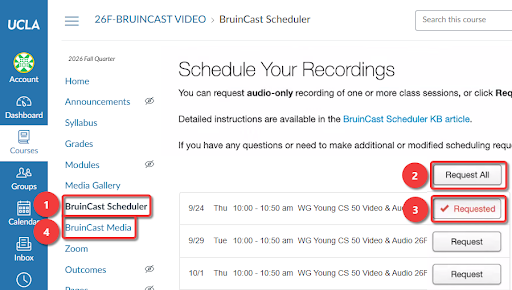
- Log in to Bruin Learn and navigate to the BruinCast Scheduler in the left-hand navigation menu of your course.
- Press Request All or the Request button to schedule which class sessions you wish to record.
- Verify that your selected buttons are marked with a red checkmark and indicate that they are Requested.
- If you wish to remove a request from a session, simply click the same button again.
- When at least one session recording has been requested, the BruinCast Media tab will automatically appear in the left-hand navigation menu of your course. This is where your students will access the recordings once they are available. If you have requested at least one session recording and do not see this tab available in your course navigation, please contact bruincast@ucla.edu
- “Welcome and Confirmation Email” sent to your email from bruincast@ucla.edu
BruinCast FAQs
BruinCast is UCLA’s lecture capture service for recording eligible class meetings and making those recordings available through Bruin Learn, with Panopto used for hosting and playback.
If your course is eligible, open the course in Bruin Learn and use BruinCast Scheduler located in the Navigation menu. If you do not see BruinCast Scheduler, email bruincast@ucla.edu.
Students open the course in Bruin Learn and select BruinCast Media. Recordings appear after processing and publishing are complete.
Video and audio classrooms can capture the instructor and/or classroom presentation sources, depending on room setup. Audio-only classrooms capture instructor audio for podcast-style recordings.
Use BruinCast Scheduler to select eligible sessions. You can schedule recording of one or more class sessions, or click Schedule All to set up recording of every class session.
If the interface does not support a specific case, contact bruincast@ucla.edu.
For the initial Fall 2026 workflow, standard recordings follow the scheduled meeting time. Contact bruincast@ucla.edu for unusual cases or support needs.
Re-schedule the recordings. Check BruinCast Scheduler after the room change appears in Bruin Learn. You can reschedule recording of one or more class sessions, or click Schedule All to set up recording of every class session. This will set the recording to the new room assignment. If the recording schedule looks wrong or missing, contact bruincast@ucla.edu.
Cross-listing can affect course navigation, permissions, and recording schedules. Verify BruinCast Scheduler and BruinCast Media after cross-listing and contact bruincast@ucla.edu if anything appears incorrect.
Access is normally limited to course participants in Bruin Learn unless a different sharing arrangement has been approved.
No. BruinCast recordings are intended for streaming through Bruin Learn/Panopto.
Automated captions and transcripts are available for all BruinCast recordings via Panopto. Accommodation-related captioning, audio description, interpreting, or translation requests require separate review and support from CAE. Reach out to CAE at caeintake@saonet.ucla.edu.
Email bruincast@ucla.edu for support with the service. Please provide a brief description of the request or issue. If possible, please provide the course info along with your request or issue.